
Files Sandbox
App Sandbox Browser for iOS Simulator
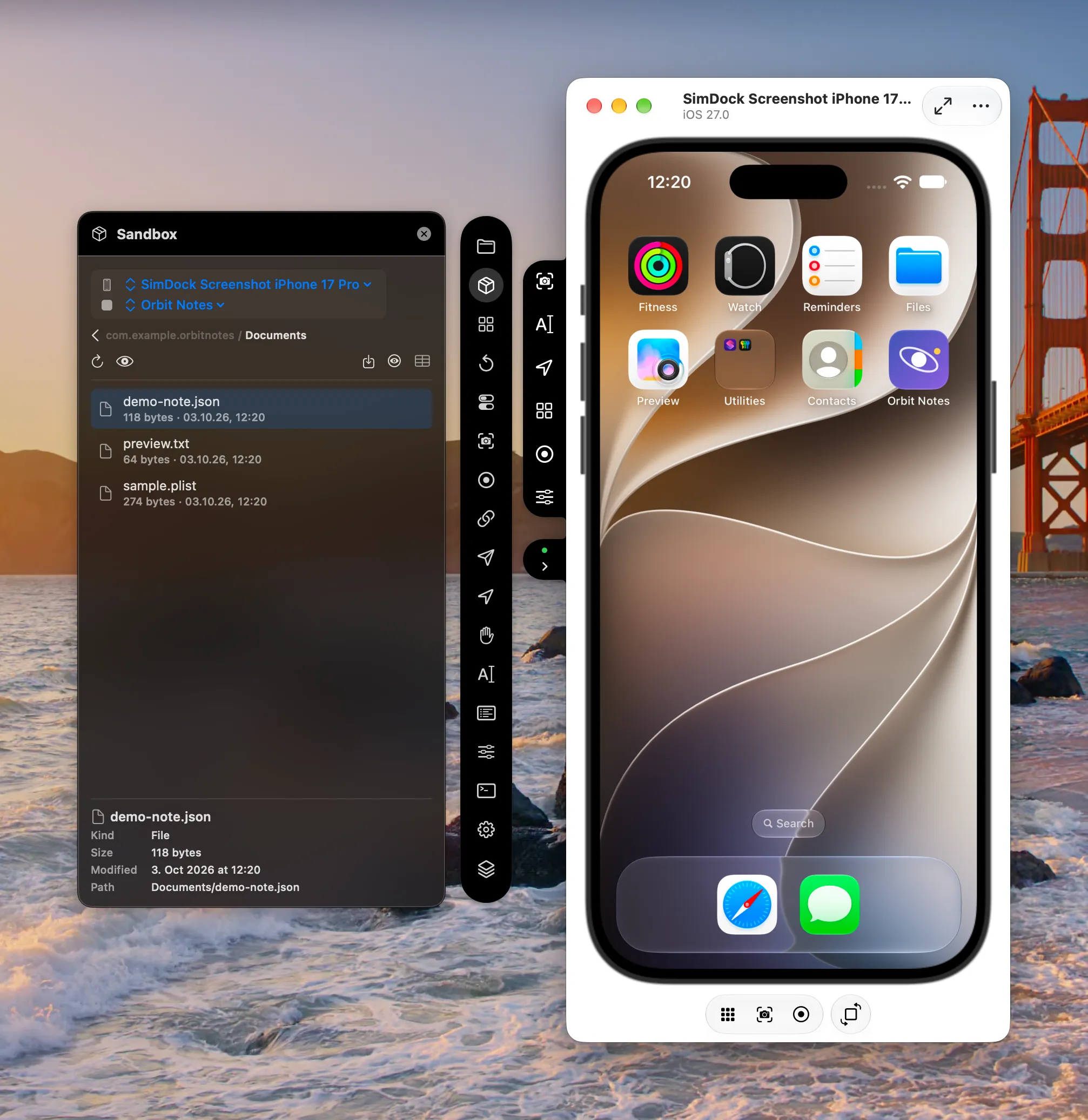
SimDock’s Sandbox tool opens the data container of the app selected in SimDock on the selected iOS Simulator, so you can see exactly what the app wrote — and move files in and out — without digging through Finder.
The problem it solves
Each simulator keeps every app’s data in a container under a long, generated path that changes per device and per install. Finding the right one usually means running xcrun simctl get_app_container and copying paths around. SimDock asks simctl for the current container and keeps it in sync with the app and simulator you’ve selected.
Browsing the container
The Sandbox tool shows the three places an app keeps its data: Documents, Libraryand tmp. Other top-level entries of the container are intentionally not shown. Every path is checked against the current container right before an action, so a stale selection can’t act on the wrong files.
- Quick Look any file, or Reveal in Finder.
- Import files into a folder and export them back to your Mac.
- Rename items, and replace a file — the copy is swapped in atomically.
- Drag files out to Finder.
Putting files in
With the Files tool, drop files onto the toolbar to copy them into the app’s Documents,Documents/Inbox or tmp folder. Photos and videos can go to the simulator’s Photos library instead, through xcrun simctl addmedia.
Inspecting data files
Inspect Data recognizes a file by actually parsing it, not by its name, and opens it accordingly:
- Property lists
- XML and binary plists. Values can be edited one at a time; the file keeps its original format.
- JSON
- Values can be edited one at a time.
- SQLite
- Tables and rows, paged so large tables never load at once. Always read-only.
- SwiftData & Core Data
- Their SQLite stores are recognized and shown read-only. SimDock never edits their internal tables.
- Anything else
- File details, Quick Look and export.
Plist and JSON edits are written safely: SimDock refuses to save if the file changed since it was opened, writes the new version to a temporary file, verifies it by parsing it back, and only then replaces the original atomically.
Databases are opened with SQLite’s read-only mode, which doesn’t modify the database or its -wal and-shm files and still sees data the app has committed. There is no SQL entry field and no write path.
Limits
- Only Documents, Library and tmp are browsable.
- SQLite, SwiftData and Core Data stores are read-only.
- Plist and JSON edits change one value at a time.
- There is no hex editor for unrecognized files.
Does my app need changes?
No. SimDock locates the container with simctl and works with the files in it; nothing is added to your app.