
For Xcode’s Device Hub and the iOS Simulator
SimDock
The developer toolbox that docks beside your Simulator.
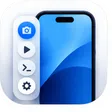
A native macOS companion that attaches to the Device Hub window and keeps files, app data, screenshots,
recordings, deep links, push, location and logs one click away — all through Apple’s own
xcrun simctl.
Overview
Fifteen tools.
One edge toolbar.
SimDock runs quietly from the menu bar. Its toolbar sits right next to the Simulator, so common development chores never mean a trip to Terminal.
-
Docks and follows
The toolbar attaches beside the frontmost Device Hub window and moves with it — even across several windows and displays.
-
Always the right simulator
Every tool acts on the simulator you chose. With several booted, SimDock asks instead of guessing.
-
Keyboard first
Press ⌘K for the command palette. Pin frequent Quick Actions to a Workspace.
- Files Drop files into an app’s container or the Photos library.
- Sandbox Browse and manage an app’s data container.
- Apps List, launch, terminate, install and uninstall apps.
- App Data & Reset Reset an app’s data with an honest report of what was removed.
- Screenshot Capture, preview, copy and save simulator screenshots.
- Screen Recording Record the simulator screen to a validated .mov file.
- Open URL Launch deep links and universal links, with recents and favorites.
- Push Send JSON push payloads, with presets and recent sends.
- Location Set coordinates, play GPX routes or built-in scenarios.
- Privacy & Permissions Grant, revoke or reset an app’s simulator permissions.
- Quick Input Keychain-backed test values, copied to the simulator’s pasteboard.
- Scenarios Saved, ordered test steps with a full preflight.
- Controls Appearance, contrast, content size and status bar overrides.
- Console A live, filterable view of the simulator’s unified log.
- Workspaces Named contexts with pinned Quick Actions.
Files Sandbox
Move files in. Look inside.
Drop files onto the toolbar to place them in an app’s container or the simulator’s Photos library. Then open the app’s sandbox and see exactly what it wrote.
- Copy to Documents, Inbox or tmp, or import photos and videos with
simctl addmedia. - Browse the data container with Quick Look, Reveal in Finder, import, export, rename and replace — and drag files back out to Finder.
- Inspect Data in plist, JSON, UserDefaults, SQLite and SwiftData stores. Plist and JSON values can be edited one at a time with an atomic, verified write; databases always open read-only.
- Copy to Documents
- Import to Photos
- Quick Look
- Reveal in Finder
- Inspect Data…
Screenshot Screen Recording
Capture exactly what the simulator shows.
Screenshots and recordings come straight from the simulator’s own display through simctl io —
pixel-exact, and without granting SimDock Screen Recording access.
- Screenshot Studio captures with ⌘⇧S, previews the result and names it for you. Copy it, save it to your folder, or Save As.
- Screen Recording writes a
.mov, stops the recorder gracefully, and checks every movie is playable before offering it.
- Copy
- Save
- Save As…
- Reveal
- Record
- Stop
Open URL Push
Deep links and push, without the Terminal round trip.
Test the ways your app gets opened — from a custom scheme, a universal link or a notification.
- Open URL sends custom-scheme and HTTP/HTTPS links to the selected simulator, with recents, labelled favorites, and the URL schemes your installed apps declare.
- Push delivers an editable JSON payload with
simctl push, with presets and a history of recent sends.
- Open
- Favorite
- Clear Recents
- Send
- Format
Location
Put the device anywhere — or on the move.
Simulate location inside the simulator only. SimDock never reads your Mac’s location and needs no Location Services permission.
- Fixed coordinates with strict validation, named presets and recents.
- GPX routes — import a track and play it back on the device.
- Built-in scenarios from the simulator itself, one click away.
- Set Location
- Clear
- Add Preset
- Start Route
- Copy coordinates
Apps App Data & Reset Privacy & Permissions
Manage the app under test.
Everything about the installed app — its lifecycle, its data and its permissions — in one place.
- Apps lists, searches, launches, terminates, installs and uninstalls.
- Reset App Data reinstalls the app from a validated copy and reports truthfully what was removed and what was not.
- Privacy & Permissions grants, revokes or resets access to Location, Photos, Contacts, Calendar, Microphone and more — for one app at a time.
- Launch
- Terminate
- Install App…
- Uninstall…
- Reset App Data
- Reset All Permissions…
Controls Console
Tune the environment. Read the log.
Check your UI under different conditions, then see what the app is logging while you do.
- Controls switch Light and Dark appearance, Increase Contrast and content size, and override the status bar — time, network, Wi-Fi, cellular and battery.
- Console streams the simulator’s unified log live. Filter to one app, search, and copy or export what’s visible.
- Appearance
- Increase Contrast
- Content Size
- Status Bar
- Search logs…
- Export…
Scenarios Workspaces Quick Input
Repeatable setups, a keystroke away.
Turn the steps you repeat every day into something you run once.
- Scenarios save an ordered set of steps — appearance, status bar, location, permissions, launch, deep links, push — and validate all of them before anything changes.
- Workspaces remember what you’re working on: the simulator, the app, the first tool, and pinned Quick Actions.
- Quick Input keeps test values in your Keychain and copies them to the simulator’s own pasteboard, ready to paste.
- The command palette — ⌘K — reaches every tool and action by name.
- ⌘K
- Run Scenario
- Quick Actions
- Copy
Technology
Built only on what Apple supports.
SimDock is a thin, careful layer over xcrun simctl and public macOS APIs. That keeps it predictable
across Xcode releases — and honest about what it can and can’t do.
-
A native Mac app
Built with SwiftUI and AppKit. SimDock lives in the menu bar — no Dock icon, no main window — and its panels are native macOS panels.
-
Apple’s supported tooling
Simulator actions run through xcrun simctl as typed processes — an executable and an argument list, never a shell string — with cancellation and timeouts.
-
No private frameworks
SimDock does not load CoreSimulator or SimulatorKit private APIs. If simctl can’t do something, SimDock doesn’t either.
-
No special permissions
Attaching to Device Hub uses window metadata that needs no permission. Screenshots and recordings come from simctl, so Screen Recording access is never requested, and Accessibility is not required.
Honest about limits
- Privacy & Permissions offers Grant, Revoke and Reset — never on/off switches — because supported tooling can’t read an app’s current authorization state.
- App Data & Reset tells you what a reset removes (the app’s data container) and what it doesn’t (the Keychain, shared App Group data).
- Network conditioning is not offered. It was investigated, and Xcode provides no supported per-simulator mechanism.
Privacy
SimDock contains no analytics or telemetry and makes no network requests of its own. Its settings, recents and favorites stay on your Mac; Quick Input values are stored in your Keychain. The only web page it opens is the optional Support SimDock page — and only when you click it.
SimDock 1.0
SimDock isn’t available for download yet. This page will offer the signed download as soon as it is.
- macOS
- macOS 26 or later
- Xcode
- With iOS Simulator runtimes installed
- Designed for
- Device Hub in Xcode 27